iPhone and iPad

Giraffe for iPhone and iPad

The projects you keep with AI, readable in the moments they’re for: the same account, the same project as on the web.

Quick on the phone. Room to read on the iPad.

Available now, iPhone and iPad, iOS 18 or later

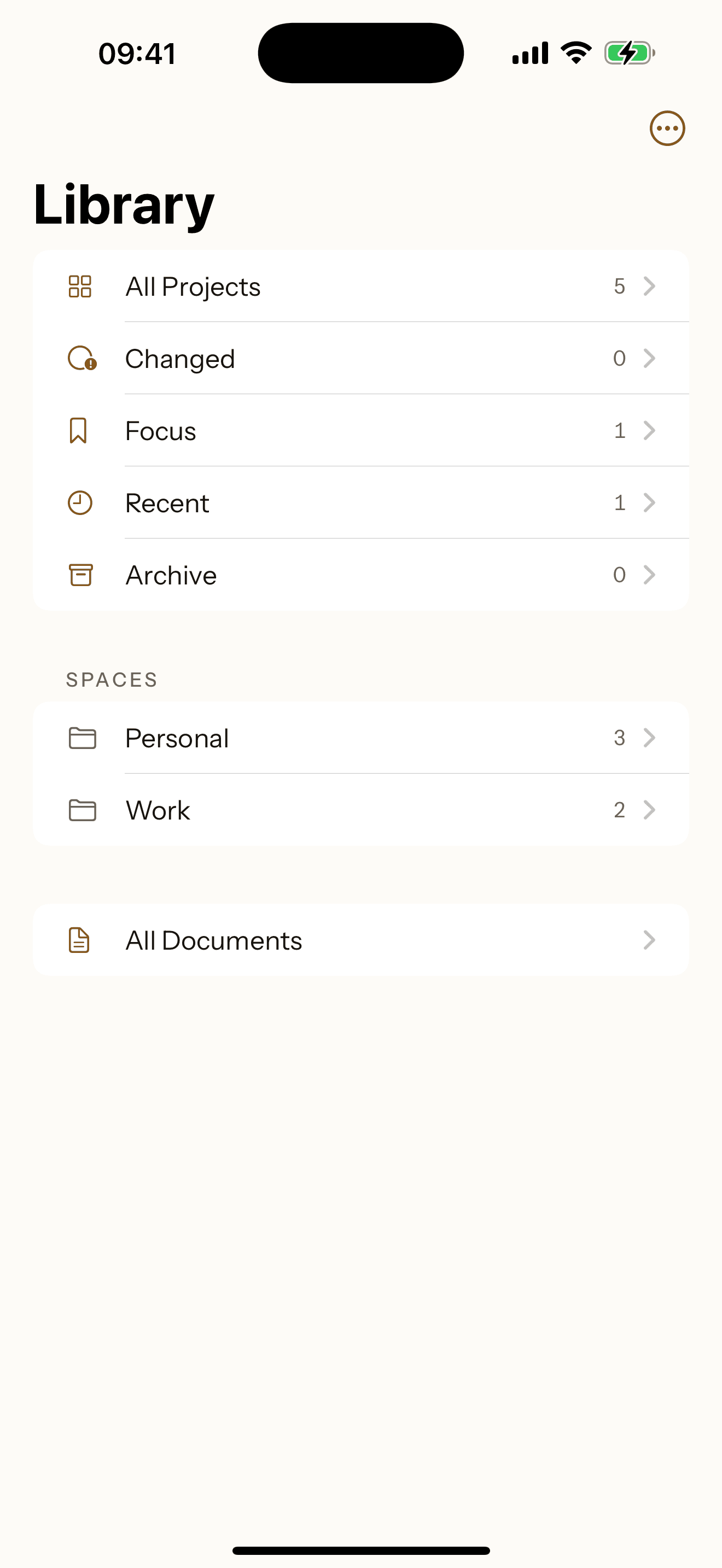
Giraffe on iPhone, the Library screen: All Projects, Changed, Focus, Recent and Archive, then the Personal and Work Spaces, then All Documents. Simulator capture of the account this page describes, with the ski week in Focus.

Current state, not the transcript

Open the project and read what’s true now: the six Current rows, the four Decisions, the open question. Not a chat to scroll back through.

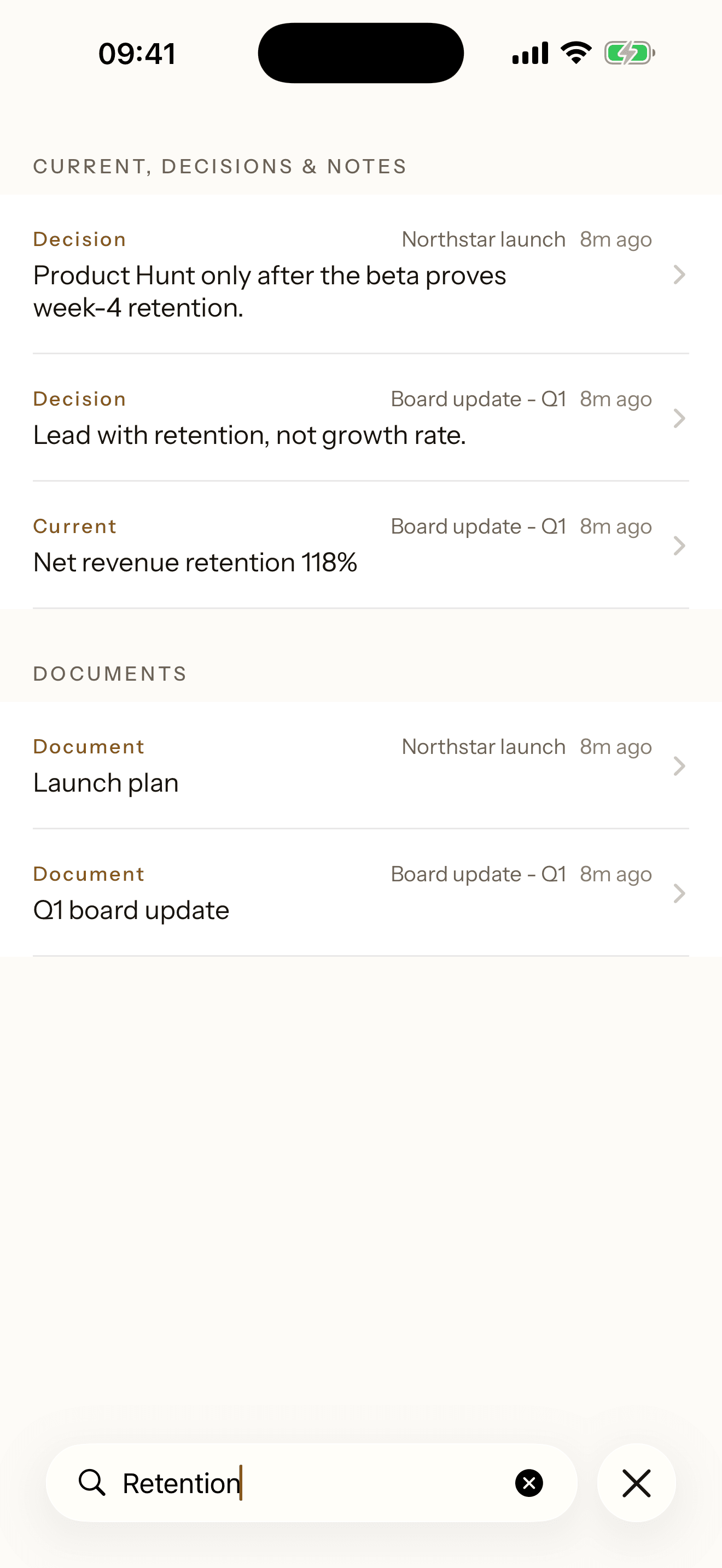
Search across what you kept

Type ski school and the meeting time is the first result.

Documents you can actually use

The Pocket Plan is written from the project, not retyped by hand: hotel, meeting point, lift passes, all on one page.

Open it, and the ski week is already there.

Your projects, grouped the way you filed them. Keep the ones you need close in Focus, and search reaches every one of them.
Giraffe on iPhone, the Library screen: All Projects, Changed, Focus, Recent and Archive, then the Personal and Work Spaces, then All Documents. Simulator capture of the account this page describes, with the ski week in Focus.

Focus

Dolomites — Family Ski Week

Personal, 6 Current 4 Decisions 1 Open, Updated last week

The frames above are Simulator captures of this project. The row repeats its values in this page’s type.

Current. Decisions. Open questions. On one screen.

Open the Dolomites project and the order is the one you know: Current first, then Decisions, then Open questions with Resolve beside each one, then Notes and History.
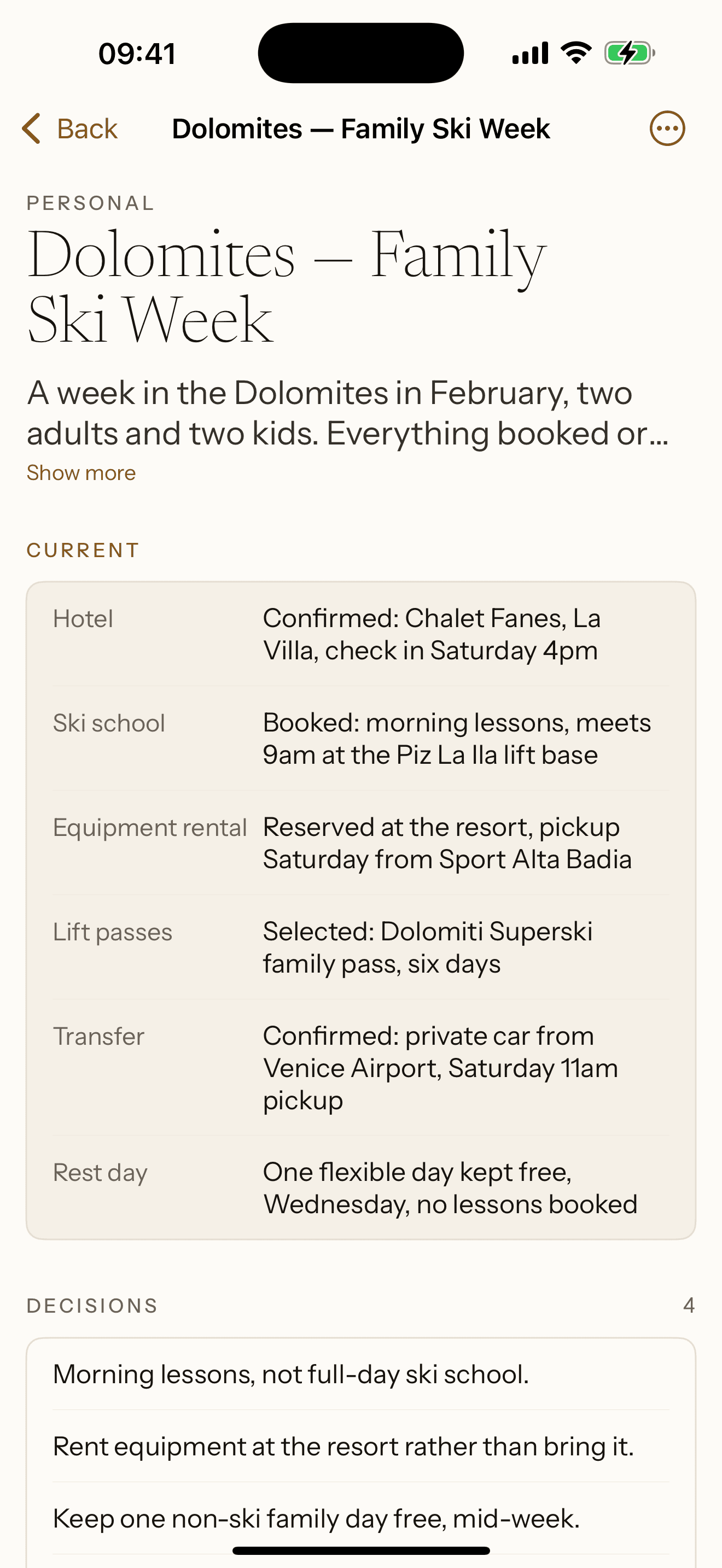
Giraffe on iPhone, the Dolomites project open: the six Current rows from Hotel to Rest day, then the first of the four Decisions. Simulator capture of the example project this page describes.
  • Four decisions, one place

    Morning lessons, resort rental, the rest day, the transfer: read together, not spread across old chats.

  • Every change keeps its history

    When a decision changes, the one it replaced stays in History, dated and attributed.

Current6

Hotel
Confirmed: Chalet Fanes, La Villa, check in Saturday 4pm
Ski school
Booked: morning lessons, meets 9am at the Piz La Ila lift base
Equipment rental
Reserved at the resort, pickup Saturday from Sport Alta Badia
Lift passes
Selected: Dolomiti Superski family pass, six days
Transfer
Confirmed: private car from Venice Airport, Saturday 11am pickup
Rest day
One flexible day kept free, Wednesday, no lessons booked

Decisions4

  • Morning lessons, not full-day ski school.
  • Rent equipment at the resort rather than bring it.
  • Keep one non-ski family day free, mid-week.
  • Drive from the airport rather than take the train.

The Dolomites project’s own values, set in this page’s type.

On iPad, the plan and the project, side by side.

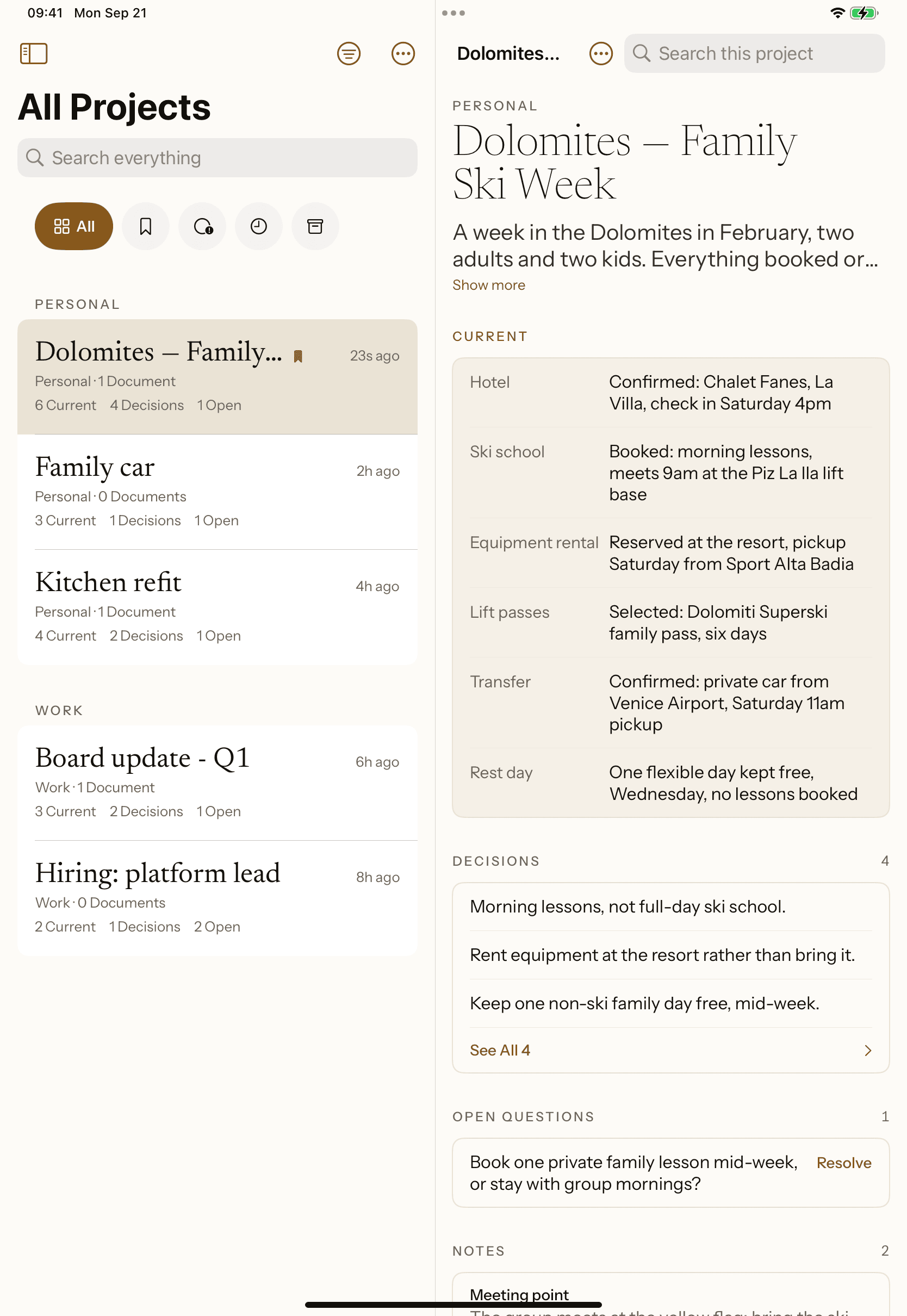
On a 13-inch iPad in landscape, three columns: Library on the left, the project list in the middle, the project you chose on the right.
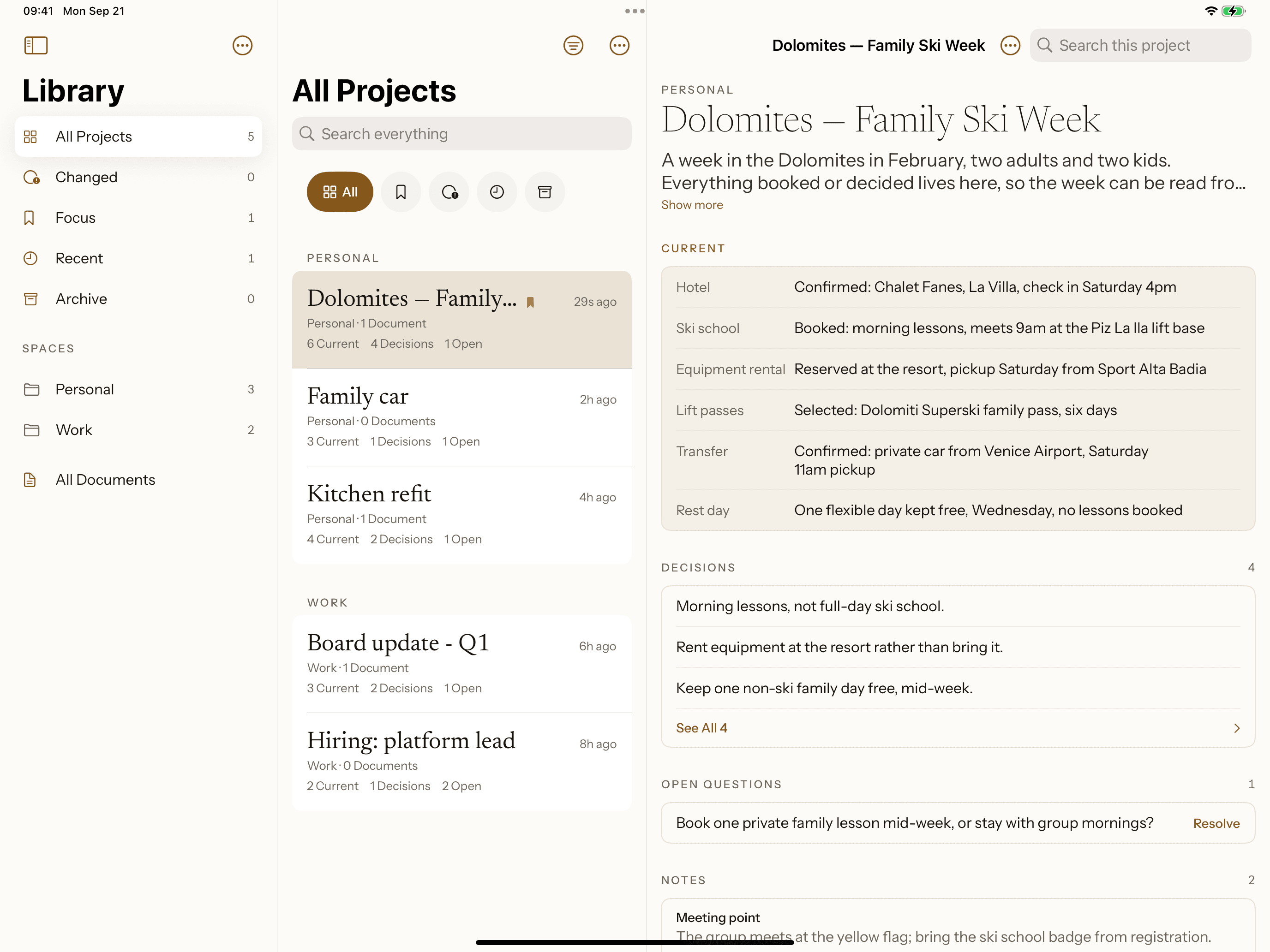
Giraffe on a 13-inch iPad in landscape: Library on the left, All Projects in the middle with the Dolomites project selected, and that project on the right with its six Current rows, four Decisions, the open question and its Notes. Simulator capture of the example project this page describes.
  • Already current

    Open the iPad on travel day and the plan reads as it was last left, without opening anything twice.

  • Read here, decide where you were

    The tablet is for reading on the mountain. Resolving a question is the one thing it changes.

Ski Week — Pocket Plan

Check in
Chalet Fanes, La Villa. Saturday from 4pm; a key-box code is on the booking confirmation for an earlier arrival.
Ski school meeting point
Piz La Ila lift base, 9am. The group meets at the yellow flag; bring the ski school badge from registration.
Equipment rental
Sport Alta Badia, pickup Saturday from 5pm. Bring each child’s height and boot size; the booking reference is on the confirmation email.
Lift passes
Dolomiti Superski family pass, six days. Collect at the ticket office with the confirmation number; valid Sunday through Friday.
Transfer and parking
Private transfer from Venice Airport, Saturday 11am pickup. The chalet has two covered spaces if a rental car is added later.
Backup and rest day
If the lifts close for weather, the toboggan run at San Cassiano is the fallback. Wednesday stays the flexible rest day, nothing booked against it.

The rows above are the Pocket Plan’s own, set in this page’s type. The frames below are the same document, open in the app.

Read the Pocket Plan like a page.

Ask your assistant for a brief and it lands in the project’s Documents, dated and versioned. Nothing rewrites itself.
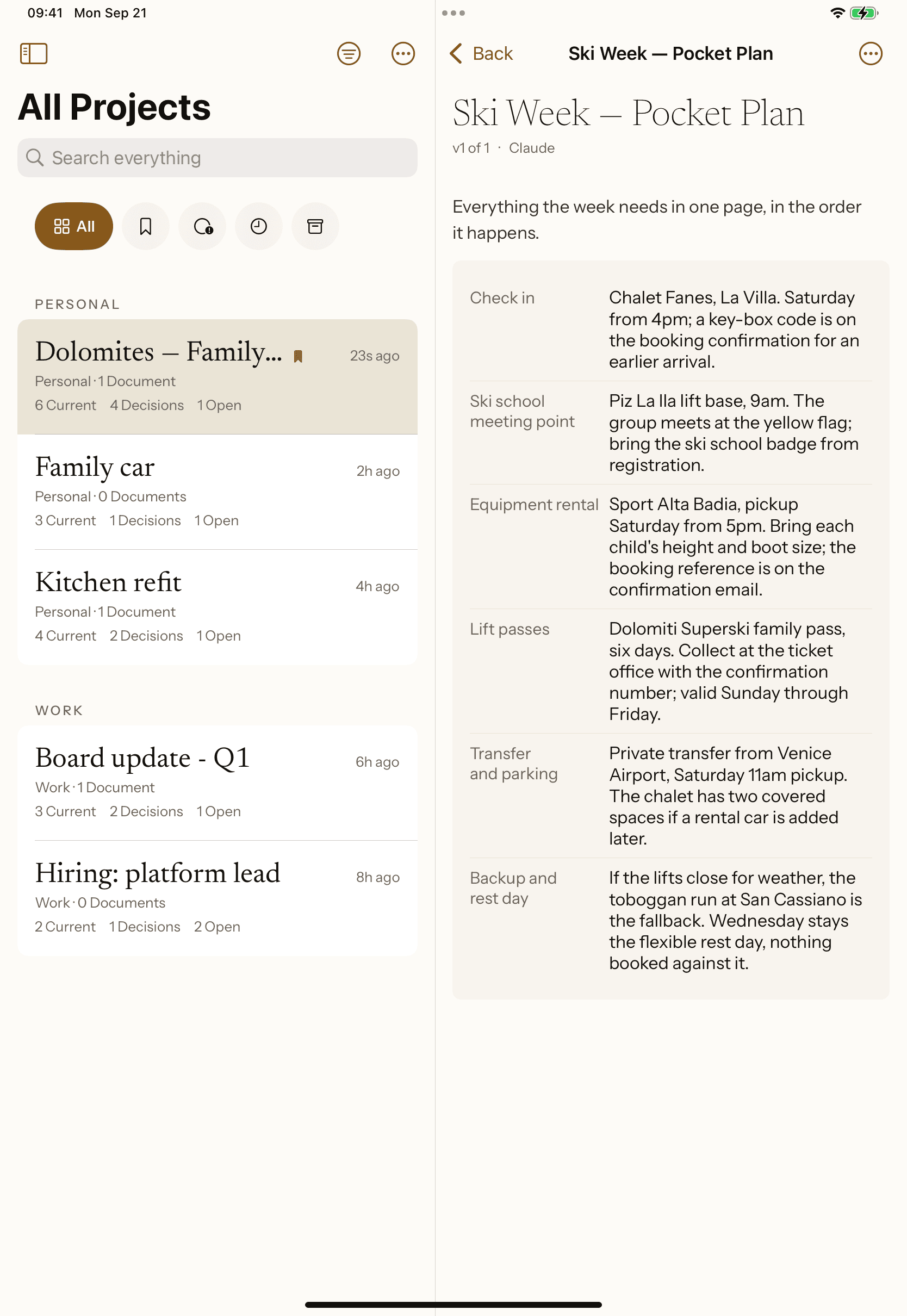
Giraffe on iPad, held upright: the All Projects list beside the open Ski Week Pocket Plan, version 1 of 1, written by Claude, with its check-in, ski school meeting point, equipment rental, lift passes, transfer and backup rows. Simulator capture of the example project this page describes.
  • Written from the project

    The Pocket Plan is built from what the project already holds, not retyped by hand.

  • Versions never overwrite

    A new version keeps the one before it, exactly as it was written.

The frame above is the Ski Week Pocket Plan itself, open on an iPad in the Simulator.

From a conversation to a plan you can open.

  1. 01

    Connect once, on the web

    Link an assistant to your account. It happens a single time, from a computer.

  2. 02

    Tell it what matters

    Ask your assistant to save what you decided. It writes Current facts, Decisions and Notes into the project.

  3. 03

    Open it on your phone

    Sign in with an email code, no password. The project is already there.

  4. 04

    Continue from where it stands

    Current, Decisions and Open questions, exactly as your assistant left them.

One decision changes. The history remembers it.

Read what changed since you last looked, and who changed it. Resolving a question is the one thing you can do from here.
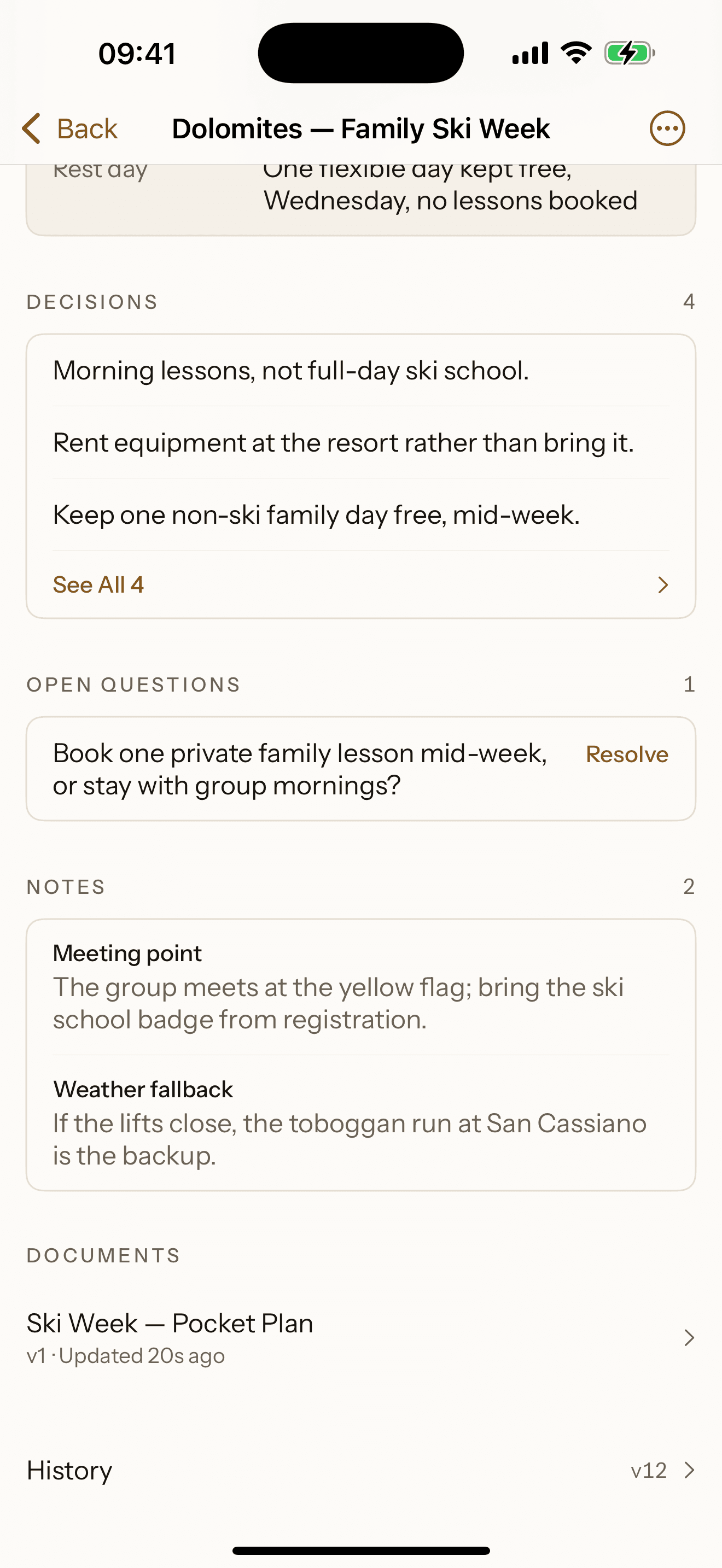
Giraffe on iPhone, the lower half of the Dolomites project: the open question with its Resolve control, the Notes, the Ski Week Pocket Plan under Documents, and History at version 12. Simulator capture of the example project this page describes.
  • Two kinds of change, one History

    A decision your assistant updates and a question you resolve both land in the same record.

  • Attributed either way

    Every entry names who made it: you, or the assistant.

History

Read top to bottom, most recent first. Neither entry can be undone from here: History is a record, not a control.

Your assistant

Ski school changed to mornings only

Was: full-day, all week

You

Open question resolved

Pre-book mountain lunches for the week, or decide each morning?

Open questions 1

Book one private family lesson mid-week, or stay with group mornings?

Resolve

From the phone you can

  • Resolve an open question.
  • Keep a project in Focus, or take it out.
  • Move a project to a Space, archive it and restore it, or move it to Trash.
  • Move a document to another project.
  • Copy a project for your assistant, as a summary, or as plain text.
  • See which assistants are connected, and disconnect or reconnect one. Connecting itself starts on the web.

Not on the phone, by design

Adding facts, decisions or notes, editing the overview, creating a project or a document. That is your assistant’s work, or yours on the web. The ski school change above is your assistant’s edit, read here, not made here.

Giraffe for iPhone and iPad.

On the App Store now, iOS 18 or later. Sign in with the account you already have.

An email code gets you in: no password. Connecting an assistant is done once, on the web.